WordPress security basics: A Practical Checklist
A simple WordPress security baseline: updates, access control, backups, hardening, and monitoring.

WordPress security does not need to be complex. Most attacks happen because of weak passwords, outdated plugins, or missing backups. This checklist covers the essentials that reduce risk fast.
What you will set up
- Strong access control
- Regular updates
- Reliable backups
- Basic hardening
- Simple monitoring
Example screenshot (illustration)
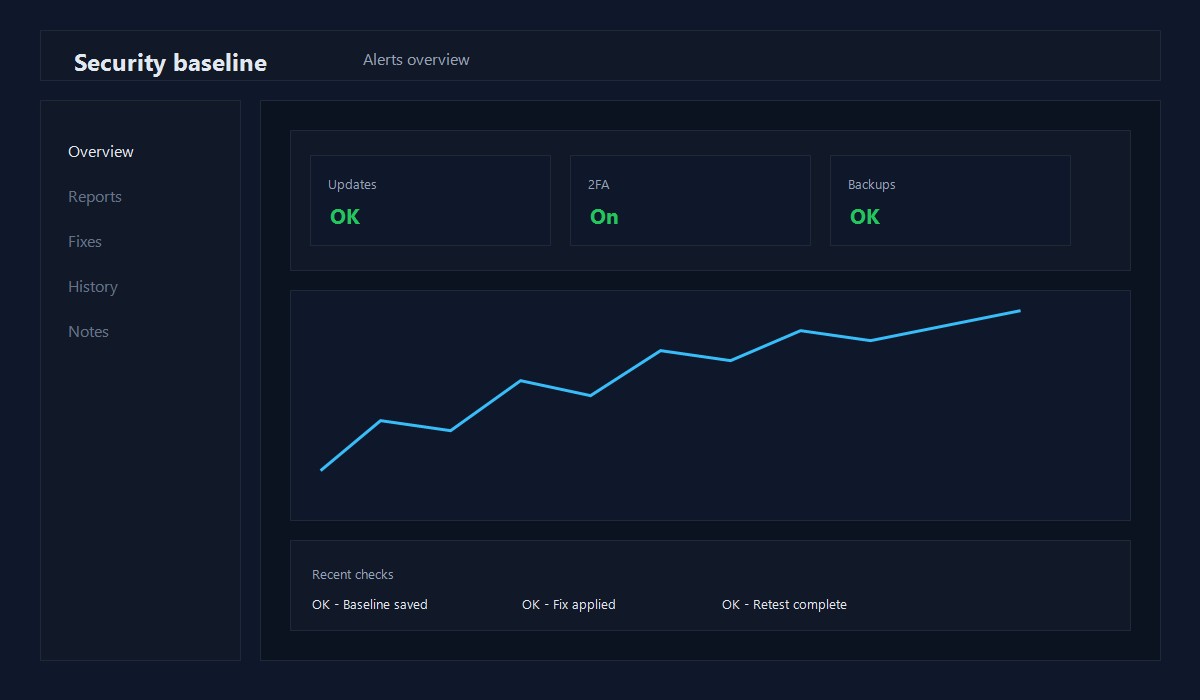
Illustration: Security baseline overview.
1) Update and remove
- Update WordPress core, themes, and plugins
- Delete unused themes and plugins
- Remove old admin accounts you do not need
Outdated plugins are the most common entry point.
2) Lock down access
- Use strong, unique passwords
- Enable 2FA for admin accounts
- Limit login attempts
- Change default admin usernames
3) Backups you can trust
- Store backups off-site
- Keep at least 7 days of backups
- Test a restore once per quarter
A backup you have never restored is a guess, not a plan.
4) Basic hardening
- Disable file editing in wp-config
- Use HTTPS everywhere
- Protect wp-admin with additional auth if possible
define('DISALLOW_FILE_EDIT', true);
5) Monitor and alert
- Enable security alerts for login attempts
- Check server logs if you see spikes
- Review admin activity monthly
Quick checklist
- [ ] Core, themes, and plugins updated
- [ ] Unused plugins removed
- [ ] 2FA enabled for admins
- [ ] Backups stored off-site
- [ ] DISALLOW_FILE_EDIT set
- [ ] HTTPS enforced
- [ ] Login attempts limited
Common mistakes
- Keeping abandoned plugins installed
- Reusing passwords across sites
- No off-site backups
- Leaving file editing enabled
Threat model for small WordPress sites
Most small sites get hit by automated attacks, not targeted ones. The most common entry points are old plugins, weak passwords, and exposed admin logins. Focus on the basics first:
- Remove plugins you do not use
- Update anything that has a security patch
- Lock down admin access and 2FA
Weekly security routine (15 minutes)
- Check for core and plugin updates
- Review failed login attempts
- Confirm backups completed successfully
- Scan for new admin users
This simple routine prevents most avoidable compromises.
Baseline security stack (minimal)
Keep the stack light and focused:
- Security plugin with login protection
- Backup plugin or host backup
- Uptime monitor (free is fine)
If a plugin does not reduce risk, remove it. Fewer plugins means fewer attack surfaces.
First-hour incident plan
If you suspect a compromise:
- Put the site in maintenance mode.
- Change admin passwords and revoke unknown users.
- Restore from the most recent clean backup.
- Update all plugins and themes after restore.
- Scan logs for the initial entry point.
Write these steps down before an incident so you do not lose time.
New site hardening checklist
- Change the default admin username
- Enforce strong passwords for all users
- Enable 2FA on admin accounts
- Remove unused themes and plugins
- Block file editing in wp-config
This checklist removes the most common entry points fast.
Role setup that reduces risk
- Admin: 1 or 2 accounts only
- Editor: content team only
- Author: contributors who publish
- Subscriber: keep for members or comments
Limiting admin access is one of the highest-impact changes you can make.
Quick security audit worksheet
Run this once per month:
- List all plugins and note the last update date
- Confirm 2FA is enabled for all admins
- Check for unexpected new users
- Review backup logs for the last 7 days
If any item fails, fix it before publishing new content.
Backup restore checklist
- Restore to staging first
- Confirm the homepage and one post load
- Verify images and permalinks
- Log in to wp-admin and test critical plugins
If restore fails, your backups are not ready.
Simple threat log template
Keep a lightweight log so you can see patterns:
- Date and time
- Type of event (login, file change, plugin update)
- Action taken
- Result after 24 hours
Even a basic log helps you spot repeat issues.
Monthly security report (5 lines)
- Updates applied: yes/no
- Backups verified: yes/no
- Admin accounts reviewed: yes/no
- Login attempts spiked: yes/no
- Notes: short summary
This keeps security visible without overhead.
Common objections (and answers)
- "My site is too small to be hacked." Automated bots do not care about size.
- "I will do backups later." A failed update is often the first time you need them.
- "Security plugins slow the site." One light plugin is better than a compromised site.
Treat security as routine maintenance, not an emergency response.
Quick recap
- Update often
- Keep admin access tight
- Test backups
These three steps prevent most real-world issues.
Original insight you can replicate
Example you can run this month:
- Update one plugin and take a full backup first.
- Restore the backup on staging to confirm it works.
- Document any changes required to recover cleanly.
Decision rule: If restore fails, fix backups before any new changes.
FAQ
Do I need a security plugin?
It helps, but it is not a substitute for good practices.
How often should I update?
At least monthly, or immediately for critical security updates.
What is the first thing to do after a hack?
Change passwords, restore from backup, and review server logs.
For a safe update workflow, see Safe Plugin Updates and a Simple Rollback Plan.
Editorial note
This guide is reviewed by the WPThemeLabs editorial team and updated as tools and best practices change. See our editorial policy for how we research and maintain content.
Related Posts